
Most developers treating WebP like JPEG miss one crucial detail: JPEG gives you a single quality slider, but WebP gives you two distinct dials. The first is visual quality. The second—often hidden behind settings menus—is the method selector.
Understanding how that second dial works is the key to balancing encoding speed with file size across web pipelines.
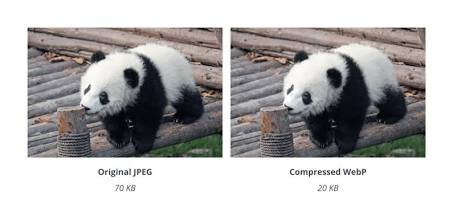
The Two-Knob Mental Model: Quality vs. Method
In standard JPEG pipelines, raising compression directly degrades image detail. WebP separates fidelity from compression effort:
- Quality (0–100): Defines your visual target—how much distortion or noise you’re willing to accept.
- Method (0–6): Controls how hard the encoder works to squeeze the image into the smallest possible byte count at that target quality.
Setting quality to 80 with method = 1 and quality to 80 with method = 4 results in two images that look virtually identical. The difference lies in CPU time and file payload: the method = 4 file will be smaller, but the CPU worked substantially harder to produce it.
What the Encoder Method Actually Tunes
Behind the scenes, the WebP encoder breaks an image into smaller pixel blocks and runs algorithmic passes to compress them. As you increase the method setting, the encoder expands its search depth across five internal mechanics:
- Predictor Search Depth: WebP predicts block pixel values using neighboring blocks (above, left, and top-left). Higher methods test significantly more candidate prediction modes before picking the best fit.
- Transform Block Size: JPEG is locked to fixed $8 \times 8$ pixel blocks. WebP flexibly chooses between $4 \times 4$, $8 \times 8$, and $16 \times 16$. Lower methods default to standard block sizes; higher methods analyze every block size combination to match local detail.
- In-Loop Deblocking Filter: Boundary artifacts are smoothed dynamically during encoding. Higher methods calculate optimal filter strengths per segment rather than applying a global average.
- Segmentation Analysis: An image can be split into up to four distinct regions, each receiving tailored quantization math. Higher methods run deeper content analysis to draw optimal segment boundaries.
- Entropy Coding Modes: Higher methods explore a broader matrix of probability contexts to package compressed data more efficiently.
Method 0 picks the simplest path for every block. Method 6 exhaustively tests almost every mathematical combination.
Pipeline Mapping: Optimisation Levels Explained
Exposing raw WebP parameters directly to users creates confusion. Methods 5 and 6 burn exponential CPU time for diminishing returns (often under 1% additional savings), while Method 0 wastes byte budget without saving noticeable CPU time compared to Method 1.
Our pipeline maps processing down to four practical Optimisation Levels:
| Optimisation Level | Encoder Method | Analysis Passes | Relative Encoding Time | Relative File Size | Typical Use Case |
| Level 0 | Method 1 | Pass 1 | $1.0\times$ (Baseline) | $1.00\times$ (Baseline) | Real-time UI previews & live canvas feeds |
| Level 1 | Method 2 | Pass 1 | $1.4\times$ | $0.97\times$ | Fast batch processing |
| Level 2 | Method 3 | Pass 1 | $2.0\times$ (Default) | $0.94\times$ | Standard web downloads & assets |
| Level 3 | Method 4 | Pass 2 | $3.5\times$ | $0.91\times$ | High-traffic CDNs & archived media |
Why Pass Count Matters
WebP supports multi-pass encoding.
- Pass 1: Gathers global image statistics and structural distribution data.
- Pass 2: Re-analyzes the image using those global stats to refine macroblock decisions.
We enable Pass 2 exclusively at Level 3. For everyday web assets, a single pass is plenty. Enabling a second pass doubles processing time while trimming roughly 1% of total file size—a tradeoff that only makes sense when an image will be served millions of times over a CDN.
Fixed Internal Parameters
To keep outputs predictable, our encoder locks roughly thirty fine-grained WebP parameters to production-tested defaults:
- Chroma Subsampling (4:2:0): Matches standard web video and JPEG color handling.
- Alpha Quality (100): Encodes transparency losslessly. Lossy alpha introduces severe edge bleeding and fringe artifacts around soft gradients.
- Spatial Noise Shaping (SNS = 50): Maintains natural grain balance across textured areas.
- Deblocking Filter (Strength 60, Sharpness 0): Smooths block borders gently without artificial edge sharpening.
- Segmentation (4 Active Segments): Retains full adaptive segmentation for mixed-content images containing both text and photographic detail.
Summary Recommendation
- For interactive tools or real-time previews, stick to Level 0 for instant rendering.
- For standard web delivery, Level 2 delivers ~6% smaller files with sub-second execution on typical smartphone and desktop photos.
- For CDN hero images or public documentation, scale up to Level 3 to squeeze out maximum byte savings.
Leave a Reply