
Even after tweaking compression ratios, sizing dimensions down to the pixel, and routing assets through a fast CDN, hero images can still feel sluggish on first load. The culprit usually isn’t file size—it’s rendering behavior. One of the simplest fixes for this is also one of the oldest optimization techniques on the web: encoding JPEGs in progressive mode.
Although progressive JPEG encoding has been built into the JPEG specification since 1992, modern image pipelines routinely leave it disabled by default. Re-enabling it remains one of the highest-yield, lowest-effort performance upgrades available for web imagery.
Baseline vs. Progressive Rendering
When a web browser fetches a standard baseline JPEG, it paints pixel rows from top to bottom, much like reading a page of text. On slower mobile networks or congested connections, visitors experience a “curtain effect” where the top portion of an image renders while the remainder stays a blank void.
A progressive JPEG flips this loading pattern completely. Instead of building row by row, it streams a low-fidelity draft across the entire image frame almost instantaneously. As remaining data chunks arrive over the wire, the browser repeatedly refines the canvas until full sharpness is achieved.
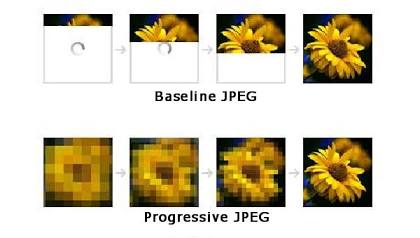
The Tech Behind the Scans: Spectral Selection
To understand why progressive files load this way, look at how JPEG compression processes visual data. The encoder applies a Discrete Cosine Transform (DCT) to map pixel grids into frequency coefficients:
- Low frequencies represent broad shapes, silhouette boundaries, and background color fills.
- High frequencies represent sharp details, text edges, fabric textures, and fine gradients.
Baseline JPEGs bundle all frequency layers for every pixel block together sequentially. Progressive JPEGs, however, use spectral selection to separate these frequencies across distinct passes:
- First Scan: Serves only the lowest-frequency data across the entire image matrix (around 10% to 15% of total file size).
- Subsequent Scans: Layer in higher-frequency bands while applying successive approximation to refine pixel precision pass by pass.
The result? Within milliseconds, the user sees a complete, recognizable version of the image. It starts soft, but a blurred preview delivers far better engagement than an empty box or half-loaded frame.
Why Perceived Speed Outweighs Clock Speed
Progressive JPEGs don’t technically download faster over the network. In fact, parsing multiple render passes adds a tiny fraction of CPU overhead in the browser decoder. However, in user experience design, perceived speed is what actually counts.
Human cognitive research shows that visual processing begins the instant recognizable geometry appears on screen. Serving a progressive JPEG allows the viewer’s brain to process image context right away.
Contrast that with a baseline JPEG: if a packet drops mid-flight, visitors stare at a broken-looking half-rendered graphic. A progressive image always looks intentional. A/B testing reveals that this immediate visual feedback can reduce perceived load times by 20% to 30%, keeping bounce rates down on critical landing pages and hero sections.
The Surprising Bonus: Smaller File Sizes
Beyond user experience, progressive JPEGs are frequently 2% to 10% smaller than their baseline equivalents at identical quality settings.
This bandwidth efficiency stems from entropy coding. By grouping similar frequency coefficients together across the entire file rather than interleaving high and low frequencies block by block, the Huffman compression algorithm finds repetitive patterns far more easily.
While header overhead makes progressive encoding inefficient for tiny graphics, any file larger than 10KB almost always sees a net reduction in file size. You get a better loading experience and a smaller payload simultaneously, with zero quality tradeoff.
Practical Deployment Guidelines
Deciding when to switch modes comes down to image dimensions and page placement:
- Use Progressive JPEGs for:
- Hero banners and above-the-fold imagery
- Blog feature photos and product galleries
- Any image file exceeding 10KB
- Sites targeting mobile networks or international traffic
- Stick with Baseline JPEGs for:
- Small icons or thumbnails under 10KB (where scan header overhead outweighs compression gains)
- Assets processed server-side without direct browser rendering
- Legacy embedded systems with severe memory constraints
Enabling Progressive Mode
Enabling progressive encoding costs nothing and fits into existing build steps. Major tools expose simple flags for it:
- ImageMagick: Add
-interlace Planeto your command line. - Sharp (Node.js): Chain
.jpeg({ progressive: true }). - MozJPEG / libjpeg: Set the progressive flag in your configuration or build task.
- Photoshop: Select Progressive under Export As or Save for Web.
Making progressive encoding your standard export default ensures faster-feeling pages and lower byte counts across your entire site.
Leave a Reply